
Lutrakit’s PDF Sign tool lets you draw or import a visual signature, place it on PDF pages, and download a new PDF in your browser. It is free, requires no account, and is designed not to upload the selected PDF or signature image. But the result is a visible mark on the page, not a certificate-based digital signature, not a qualified electronic signature, and not a cryptographic proof that the document has stayed unchanged.
Use it when the recipient asked for a visible signature image and the document is low risk. Do not use it when the recipient, platform, law, institution, or contract requires a digital certificate, identity validation, timestamping, long-term validation, audit trail, or qualified signing workflow.
This guide draws a clear boundary. It is not legal advice and cannot decide whether a visual mark is acceptable for a specific transaction.
Three ideas that are often mixed up
“Signature” can mean several different things:
| Term | Plain meaning | What Lutrakit PDF Sign does |
|---|---|---|
| Visual signature | A drawn, typed, scanned, or image-based mark visible on the page. | Yes: it places a visual PNG-like stamp on one or more pages. |
| Electronic signature | A broad legal category that may include many electronic actions or symbols, depending on jurisdiction and context. | Maybe evidence of intent in some contexts, but Lutrakit does not validate identity or legal requirements. |
| Digital/certificate signature | A cryptographic signature linked to a certificate or digital ID, usually verifiable by PDF software. | No: it does not create a certificate signature or cryptographic validation data. |
The European Commission’s eSignature material explains that eIDAS distinguishes simple, advanced, and qualified electronic signatures, with stricter requirements at each level. Advanced signatures are linked to and capable of identifying the signatory, remain under the signatory’s control, and make later data changes detectable; qualified signatures add a qualified device and qualified certificate. See the Commission’s What is eSignature page and eSignature FAQ.
A technical digital signature is different from drawing your name. NIST describes digital signatures as cryptographic mechanisms used to detect unauthorized modification and authenticate the signatory’s identity; see FIPS 186-5, Digital Signature Standard. For PDFs, ETSI PAdES defines profiles for PDF digital signatures and long-term validation needs; see ETSI EN 319 142-1 V1.2.1.
Adobe’s Acrobat documentation also separates certificate signatures from ordinary visual signing. Certificate signatures use a certificate-based digital ID and support authenticity/integrity validation; Adobe notes that visible and invisible certificate signatures can both exist. See Adobe’s certificate signatures in Acrobat.
What the Lutrakit tool is for
Use a visual PDF signature when all of these are true:
- the recipient asked for a visible signature mark, initials, or acknowledgement;
- the document is low risk;
- you do not need identity proof beyond your own communication with the recipient;
- you do not need a tamper-evident certificate signature;
- you can verify the final PDF visually before sending it;
- the recipient accepts this kind of PDF.
Examples: marking a draft, returning a school permission slip when the school accepts a visible signature, adding initials to an informal agreement, or signing a low-risk internal form where the recipient explicitly accepts an image signature.
Do not use it for notarial documents, regulated financial or medical forms, immigration/government filings, contracts that require a named e-signature provider, or any workflow that says “digital certificate,” “qualified electronic signature,” “PAdES,” “AATL,” “timestamp,” or “validated signature.”
How the browser-side tool works
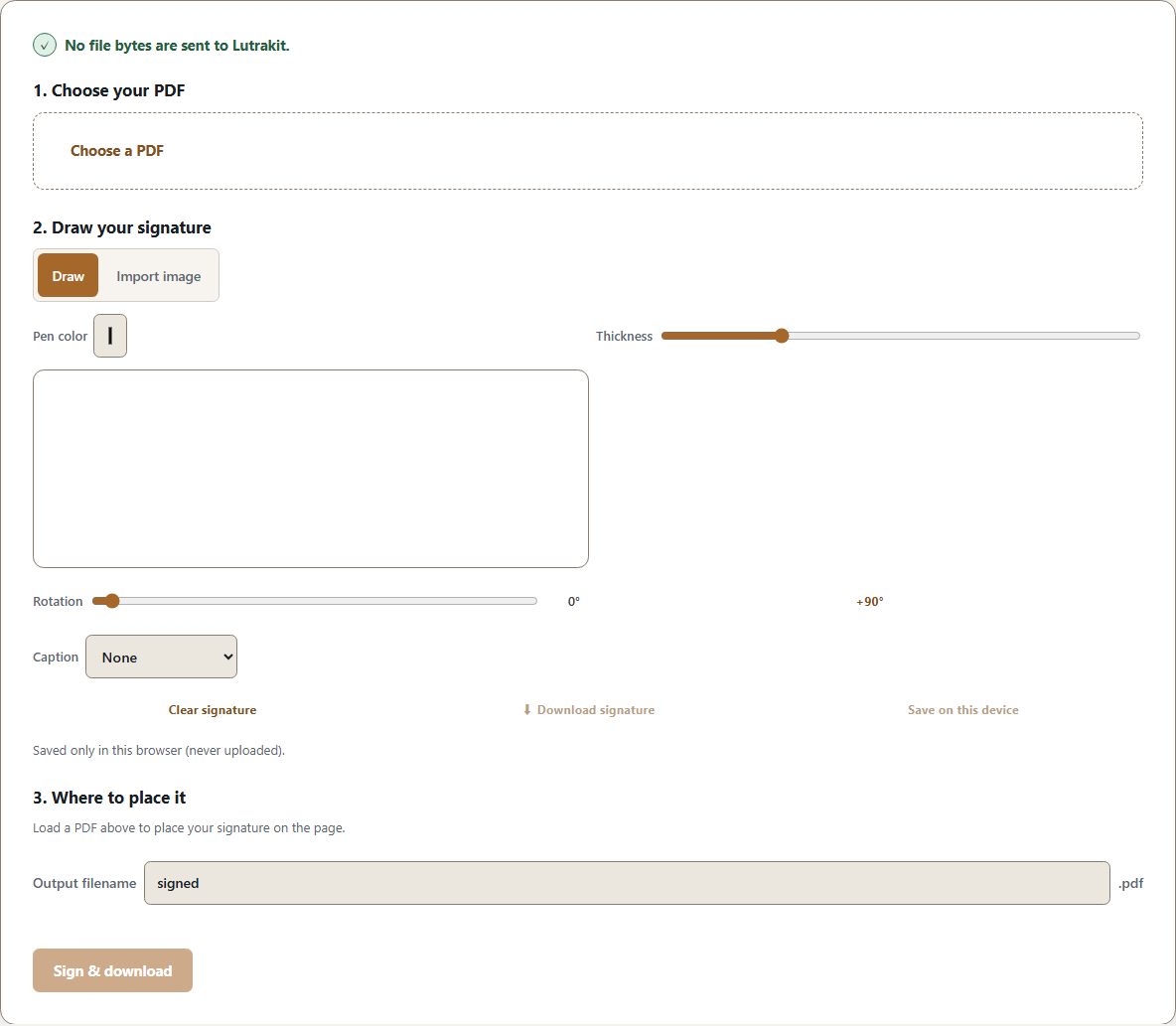
In the current Lutrakit implementation, the tool lets you choose a PDF, draw a signature or import an image, optionally add a caption, place the mark on one or more pages, and download the result. The PDF and signature data are processed in the browser. A reusable signature can be saved only if you choose the save option; it is stored in browser storage for this site, not in a Lutrakit account.
Implementation limits can change. The current source sets these relevant bounds:
- selected PDF: 100 MB maximum;
- imported signature image: PNG, JPEG, or WebP, up to 5 MB compressed, 4096 px per side and 16 megapixels after dimension checks;
- placed signatures in one PDF: up to 32;
- one placed signature PNG workload: up to 8 MB decoded;
- all placed signature PNGs in a signing job: up to 32 MB decoded;
- saved reusable signatures: up to 8 local entries, with per-entry and total storage caps.
Those limits protect the browser from unreasonable memory use; they are not a guarantee that every large or unusual PDF will sign successfully.
Worked example: a low-risk acknowledgement
Suppose a volunteer coordinator sends a one-page PDF saying, “I confirm I read the event instructions,” and replies that a visible signature image is enough.
- Open PDF Sign.
- Choose the PDF.
- Draw your signature, or import a signature image that you are comfortable using.
- Add a caption such as your typed name and the date if the recipient asked for it.
- Place the mark where the form expects it.
- Do not save the signature for reuse on a shared device.
- Download the signed PDF.
- Open the result in a PDF viewer and check the page, placement, legibility, date, and filename.
- If the viewer has a signature panel, confirm you are not accidentally relying on a certificate status that does not exist.
Expected result: the visible mark appears in the chosen place. Expected non-result: the document should not show as certificate-signed or cryptographically validated merely because the image is present.
To reproduce this example, record the browser, OS, sample file, page placement, downloaded filename, and no-upload Network check.
Privacy and saved signatures
If you use the signature once and do not save it, treat it like a temporary mark used to generate the output. If you choose to save a reusable signature, remember that browser localStorage persists for the site’s origin across sessions; MDN documents this behavior in Window.localStorage. Anyone with access to the same browser profile may be able to reuse or view saved site data.
Practical rule: never save a reusable signature on a shared, school, library, or work computer unless that is explicitly allowed and safe. Use the tool’s clear/remove controls and clear site data when you no longer want the signature kept locally.
Verification checklist
Before sending a visually signed PDF, check:
- the mark is on the correct page;
- the mark does not cover required text;
- the caption is correct and not misleading;
- the output filename is clear;
- the document still opens after download;
- the recipient accepts a visual signature;
- no one required a certificate, timestamp, audit trail, or qualified signature;
- the original unsigned file is saved separately if you need it.
If the recipient later asks for a “valid digital signature,” do not keep editing the visual file and hoping it will qualify. Use the signing method they specify.