
A lower-risk workflow for ordinary PDFs is to work on copies, put the files in the exact order you want, create one combined file, and then verify the output before sending it. Lutrakit’s free, no-account Merge PDF tool performs the merge in the browser and currently focuses on copying pages into a new PDF. That is useful for simple packets, but you should not assume every document-level feature survives. Check bookmarks, forms, attachments, layers, tags, metadata, and previous digital signatures in the output.
This guide describes a lower-risk workflow and the checks you can run on the current production tool. The example below is a reproducible test plan, not a guarantee for every PDF.
Before you merge: decide what “safe” means
For ordinary school, personal, or low-risk office documents, “safe” usually means:
- the files are processed locally in the browser;
- the page order is correct;
- no source file is overwritten;
- the output opens in more than one PDF viewer;
- the page count and key pages match the plan;
- important navigation or form behavior is not needed, or is checked manually.
For regulated, legally sensitive, or archival documents, “safe” means more. You may need controlled software, audit trails, accessibility validation, digital-signature validation, or an approved document-management system. A quick browser merge is not a records-management workflow.
The PDF format itself is standardized by ISO 32000. The PDF Association makes the current PDF 2.0 specification available and tracks errata for implementers; its ISO 32000-2 resource page is a good starting point for understanding why PDF features go beyond page images. Lutrakit does not try to preserve or re-author every possible PDF structure.
What the Lutrakit merge tool does
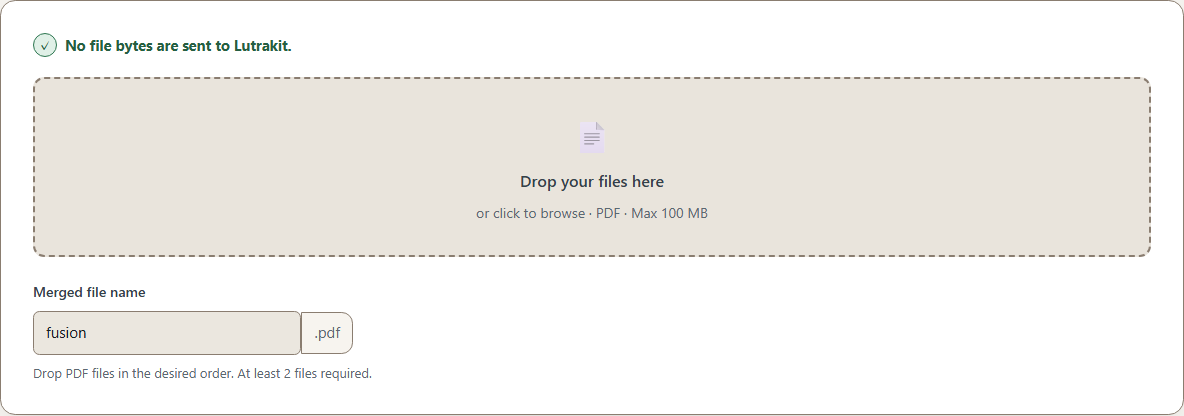
The current Lutrakit implementation uses pdf-lib in a browser worker. The pdf-lib API documents copyPages as copying selected pages from a source PDFDocument into another document; see the PDFDocument.copyPages documentation. Lutrakit creates a new PDF, loads each selected source file, copies all page indices, adds the copied pages to the new document, and saves that new PDF.
That design has two practical consequences:
- Page content is the center of the operation. If you need a visual packet of pages, this is the right level of tool.
- Document-level features need verification. A bookmark tree, form workflow, attachment, script, document metadata policy, tag tree, or certificate state may not behave as it did in the source file.
In the current source, the merge tool requires at least two PDFs, accepts application/pdf, limits each input file to 100 MB, limits combined input size to 300 MB, and lets you set a downloaded filename. Those are implementation limits, not permanent product promises; check the live interface before relying on them.
Step-by-step merge workflow
- Make a copy of the source files or work from a folder that contains duplicates. Do not test with the only copy of an important PDF.
- Rename the copies with numeric prefixes if order matters:
01-cover.pdf,02-report.pdf,03-appendix.pdf. - Open Merge PDF.
- Add at least two PDF files.
- Reorder them in the interface until the list matches the final packet order.
- Set a clear output name, such as
application-packet-2026-08-17. - Run the merge and download the result.
- Open the output in your normal PDF viewer and, if possible, a second viewer.
- Compare the output against the checklist below before you share it.
If the browser shows a memory error, stalls, or crashes, stop and use smaller batches or desktop software. Browser tools need memory for the source files, decoded structures, copied pages, and final output at the same time. Large batches of scanned PDFs can require much more working memory than their disk size suggests.
Worked example: a six-page packet
Create or choose three harmless PDFs:
01-cover.pdf: 1 page, title “Project packet cover”.02-summary.pdf: 2 pages, pages labelled “Summary page 1” and “Summary page 2”.03-appendix.pdf: 3 pages, pages labelled “Appendix A”, “Appendix B”, and “Appendix C”.
The intended output is a six-page PDF:
- Project packet cover
- Summary page 1
- Summary page 2
- Appendix A
- Appendix B
- Appendix C
After running the merge, verify the page thumbnails first, then use search or page labels inside the viewer. For a reproducible check, record the expected and observed page counts, first and last page, output filename, browser, and whether the Network panel showed any post-selection upload request.
Bookmarks, outlines and long documents
PDF viewers often call the navigation tree “bookmarks,” while the PDF technical model refers to outline entries. W3C’s PDF accessibility techniques describe bookmarks as outline entries that help users locate content in long documents, especially when scanning many pages would be difficult. See W3C’s PDF techniques for bookmarks.
For a short six-page packet, losing bookmarks may not matter. For a 120-page manual, it can make the document much harder to use. After merging a long PDF:
- open the bookmark/sidebar panel in your viewer;
- check whether headings still appear;
- click a few entries and verify they go to the right pages;
- check links from the table of contents;
- if bookmarks are essential, use a PDF editor that explicitly preserves or rebuilds outlines.
Do not promise a merged long document is accessible just because the pages are visible. Tagged PDF structure, reading order, alt text, headings, and bookmarks are separate concerns.
File size and quality checks
Merging does not automatically compress a PDF. If the inputs contain large scans, the output may be large. If a library copies resources conservatively, the output can also be bigger than expected. That is not automatically a privacy or corruption problem; it is a reason to verify.
After merging, check:
- page count;
- visual order;
- output file size;
- whether text remains selectable where it was selectable before;
- whether forms still behave as expected, if you need forms;
- whether internal links and bookmarks still navigate correctly;
- whether digital-signature or certification status still matters.
For a file you will print, do a small print-preview check. For a file you will submit to a portal, test the portal size limit before the deadline. For a file that must stay accessible, run the required accessibility checks in specialist software.
When not to use this merge
Use another workflow when:
- you must preserve existing digital signatures, certificates, timestamps, or certified-document status;
- you need PDF/A, PDF/UA, court filing, government portal, or archival conformance;
- the document contains forms, attachments, scripts, layers, comments, or complex tags that must remain intact;
- the source files are too large for comfortable browser memory;
- the documents are confidential enough that your organization bans browser tools, even local ones;
- you need audit logs or proof of who merged what and when.
For these cases, choose an approved local PDF editor or managed document system, then keep a copy of the original source files and the final output.