
Image compression is a measured trade-off, not a promise that one slider value will always produce one file size. The source image, its detail, the selected format and the browser encoder all affect the result. A reliable workflow keeps the original, chooses either visual quality or a byte target, then inspects the downloaded file instead of trusting the setting alone.
Lutrakit’s Image Compressor accepts batches of still JPEG, PNG and WebP images up to 50 MiB each. It creates JPEG or WebP outputs locally in the browser. The pixel dimensions stay unchanged: target mode searches quality levels but never shrinks width or height without telling you. Animated PNG and WebP inputs are refused so the tool cannot silently save only one frame.
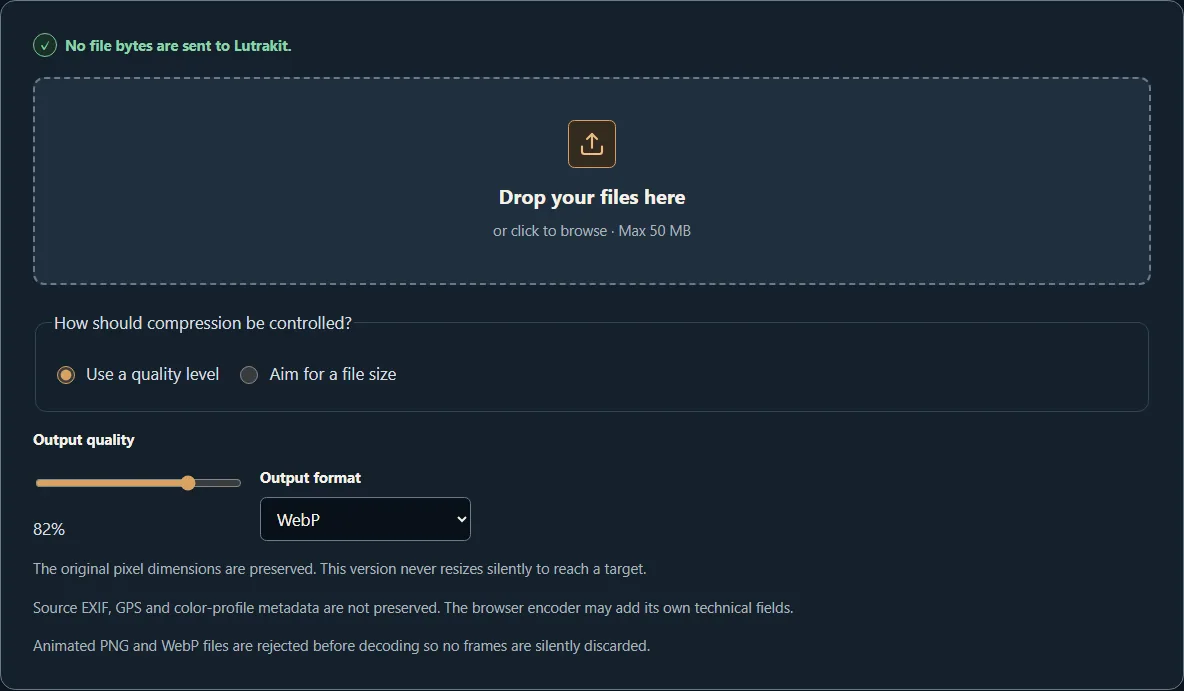
Choose quality when appearance is the main constraint
Quality mode is the direct choice when you can inspect the output and the destination does not impose a strict byte ceiling. The control runs from 10% to 100% and starts at 82%. That percentage is a request to the browser encoder, not a universal score. Eighty-two percent WebP in one browser does not have to match eighty-two percent JPEG, another image or another browser.
Start at the default, process the image and inspect fine text, hair, high- contrast edges, gradients and repeated texture. If the file is larger than you need, lower quality in a new pass from the original. If artifacts matter more than the saving, raise it. Do not repeatedly compress the previous output: lossy generations can accumulate damage.
Choose a target when the destination sets a byte limit
Target mode is useful for a form, message or content system that rejects files above a known size. Enter a whole value from 16 to 20,480 KB, where the tool defines 1 KB as 1,024 bytes. Lutrakit tests at most ten evenly spaced quality levels from high to low.
The search measures the Blob returned at each attempt. It does not assume file size falls smoothly with quality, because browser encoders are allowed to behave differently. The first tested result at or below the target is returned. If none reaches it, Lutrakit returns the smallest result it actually measured and says clearly that the target was missed.
| Result | What it means | What to do next |
|---|---|---|
| Target met | This output is at or below the requested bytes in this browser. | Check appearance, dimensions and destination acceptance. |
| Target missed | None of the ten tested qualities reached the limit. | Accept a larger file, resize with a separate tool, split the use case or choose another workflow. |
| Output larger than source | Re-encoding did not save bytes for this image and format. | Keep the original unless conversion itself is required. |
Target mode is best effort because this version does not resize. That boundary is intentional: a tool should not quietly discard pixels merely to make a number turn green.
Pick JPEG or WebP deliberately
WebP is a useful starting point for web delivery when the receiving system accepts it. JPEG remains broadly accepted for photographs and other opaque images. Neither choice is automatically best for every source, so compare the actual download in its destination.
JPEG cannot preserve transparency. Before drawing to JPEG, Lutrakit fills the canvas white, so transparent pixels become white. Choose WebP when transparency must remain, then verify alpha in the downloaded file.
The web platform can return a different type when a requested canvas codec is unsupported. Lutrakit checks the Blob’s actual MIME type before naming the file. If the browser falls back instead of creating the requested JPEG or WebP, the tool reports an error rather than giving PNG bytes a misleading extension.
Know what changes and what does not
The decoded pixel width and height are preserved. The browser is asked to honour the image’s stored orientation during decode, then the bitmap is drawn at the same dimensions. Compression can change pixel values and byte size, but it does not intentionally resize the image.
The output is a new canvas serialization. Source Exif, GPS and ICC profile blocks are not copied through that pipeline. The browser encoder may create its own technical fields, so this is not a certified metadata eraser. If location, authorship, colour management or privacy depends on metadata, inspect the download with a separate metadata tool.
APNG uses an animation-control chunk, and animated WebP uses animation chunks inside its RIFF container. Lutrakit checks for those structures before browser decode and refuses them. Use an animation-aware editor when every frame must survive.
Run a reproducible compression check
- Keep the original in a separate location.
- Open the Image Compressor and select one representative still image.
- Leave WebP and 82% selected; process and download the result.
- Record source size, output size, dimensions, actual MIME type and visible artifacts at 100% zoom.
- Start again from the original, choose target mode and enter the destination limit in 1,024-byte KB.
- Record whether the interface says the target was met or missed, plus the actual output size and encoded quality shown.
- Repeat in the browser and destination that will really be used.
For a batch, use files that share the same delivery requirement. Every image gets its own output and result summary. A single quality or target does not guarantee equal visual quality across photographs, screenshots and line art, so inspect more than the first download.
Verify privacy and failure states
Local processing means the selected bytes are decoded and encoded by browser APIs on the device. To verify that boundary for the current build, open browser developer tools, clear the Network panel, select a uniquely named copy, process it and confirm that no request carries its filename or bytes. A quiet test of one build is evidence for that build, not a permanent guarantee after future code changes.
Also test recovery. Cancel a large job and confirm the interface returns to a stable restart state. Try an animated file and confirm it is refused. If the browser cannot export the requested codec, keep the source and use a supported format or another browser rather than renaming the failed output.
A compressed input can expand substantially in memory after decoding. The tool applies device-aware raster limits in addition to the 50 MiB file limit. Reduce the batch or use a desktop editor for very large images, colour-managed print work, RAW files, high bit depth or archival masters.
Final checklist
- Keep the original.
- Match quality mode to visual review or target mode to a byte ceiling.
- Treat the target as best effort and read the met/missed message.
- Confirm dimensions, transparency, format and output size after download.
- Inspect metadata separately when it matters.
- Refuse to flatten animation accidentally.
- Recheck representative files in the actual destination and browser.
For crop, resize and rotation, use a dedicated editor rather than asking target mode to change dimensions silently. For the broader privacy model, read How local browser processing works.
Sources
- WHATWG, HTML Standard: canvas serialization and
convertToBlob(). - WHATWG, HTML Standard:
ImageBitmapandcreateImageBitmap(). - W3C, Portable Network Graphics (PNG) Specification, Third Edition.
- Google, WebP Container Specification.