
A browser screen recorder can capture the surface that you choose in the browser’s sharing dialog. Depending on the browser and operating system, the choices may include one browser tab, one application window, or one entire display. The page asking to record cannot silently choose a surface for you. The browser must let you choose each time.
For the smallest privacy boundary, share a tab when the whole task happens in one tab. Share a window when one desktop application is the subject. Share an entire screen only when the workflow genuinely crosses applications or needs the desktop itself. A wider surface makes it easier to record an unrelated notification, account name, document, or password prompt.
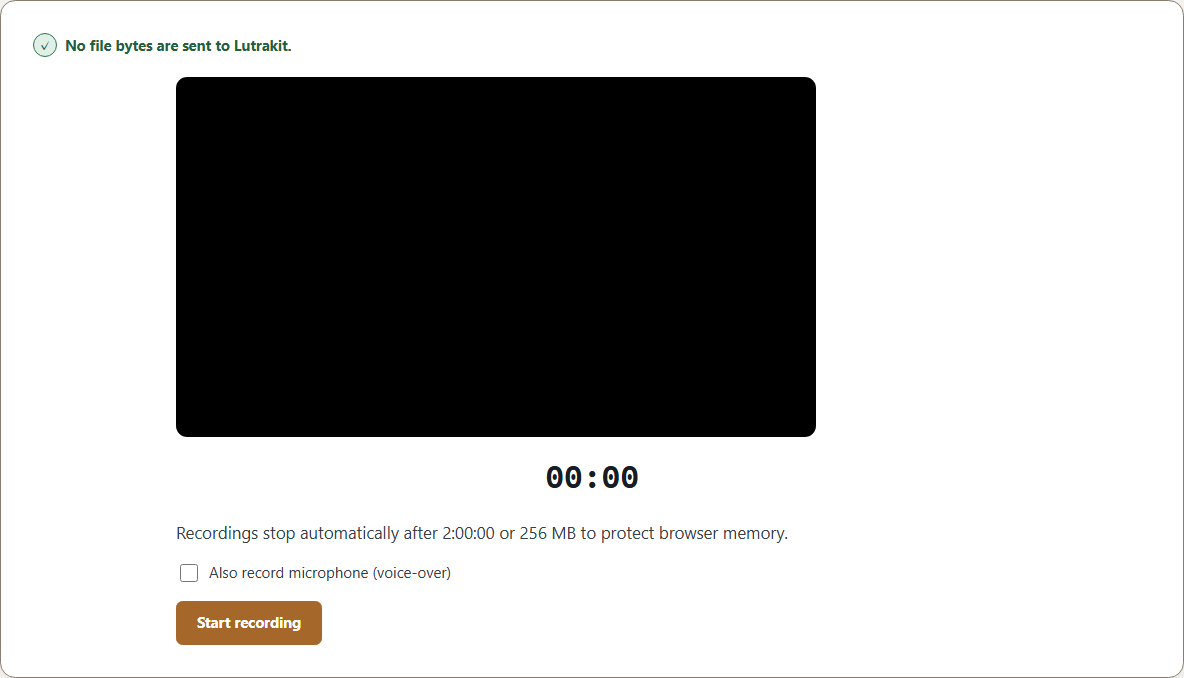
Lutrakit’s Screen recorder asks the browser for display video and optional display audio. The browser owns the source picker and permission prompt. Lutrakit then records the stream returned by the browser, can add microphone narration if you enable it, shows a local preview, and prepares a downloadable file in the page.
The browser makes the final choice
The W3C Screen Capture specification groups the available choices into three broad types: a browser tab, an application window, or an entire display. Browser interfaces use their own labels, so you may see wording such as “tab,” “window,” “screen,” or “display.”
The same specification requires the browser to offer the available choices every time a site asks to capture your screen. A site may suggest a type of source, but it cannot make the final choice for you or keep permanent permission to capture your display. These rules are part of the W3C Screen Capture specification, accessed 2026-08-18.
That division of responsibility matters when troubleshooting. If a window or tab is absent from the dialog, Lutrakit cannot add it to the list. Check that the window is open, that the browser has operating-system screen-recording permission, and that a workplace policy is not blocking display capture.
Choose the narrowest surface that completes the task
| Surface in the share dialog | What it is intended to contain | Good fit | Main privacy risk |
|---|---|---|---|
| Browser tab | The content of one selected browser surface | A web demo, presentation, or walkthrough contained in one tab | Navigation, account details, pop-ups, or sensitive content shown inside that tab |
| Application window | One selected application window | A drawing app, slide deck, terminal, or document editor | Other documents, tabs, panels, or title-bar details inside that window |
| Entire screen or display | Everything visible on one selected monitor | A workflow that moves between several apps, or a desktop demonstration | Notifications and any unrelated window moved onto that display |
This table describes the intended boundary, not a promise about every piece of browser chrome, menu, pointer, transient panel, or hidden area. Operating systems and browsers decide how a selected source is represented. The source can also become unavailable if its window or tab closes. The W3C specification says that a permanently inaccessible source ends its media track.
Share one tab for a web-only walkthrough
A tab is usually the clearest choice for showing a web app. It keeps other application windows out of the recording and gives the viewer one stable subject. Before starting, close private pages in the same browser window and make sure the selected tab itself contains no saved passwords, personal bookmarks, account avatars, or private notifications.
Do not select the Lutrakit recorder tab if its live preview will fill the capture. Capturing a tab that displays its own capture can create a repeated mirror effect. Put the content to demonstrate in a separate tab, start from the recorder tab, then choose the content tab in the browser dialog.
Share one window for a desktop application
A window is the better boundary when the whole task stays in one app. Prepare the window before recording: open the right document, hide recent-file lists, close unrelated tabs or panels, and use a sample account where possible.
Minimizing, closing, or replacing the selected window can affect the stream. Exact behavior varies, so test the same action in the browser and operating system you will use for the real recording. If the browser ends the video track, Lutrakit stops the recording and makes the captured portion available for preview and download.
Share an entire screen only when the workflow needs it
An entire screen is useful when the demonstration moves between apps. It also has the broadest capture boundary. Anything shown on the chosen display can become part of the video, including a notification preview, a chat window, another person’s name, or a file dragged onto that monitor.
The Screen Capture specification strongly recommends steering people away from monitor capture because of this privacy risk. If you must use it, move unrelated windows to another monitor, enable a system focus mode, close messaging apps, and use test data. Do not rely on cropping the finished video to repair a disclosure that is already present in the recording.
How the current Lutrakit recorder behaves
The current implementation targets supported desktop browsers. Its current user-agent guard disables Start when it recognizes Android, iPhone, iPad, iPod, or touch-based iPadOS presenting itself as macOS. This is a product guard, not a complete mobile compatibility test or a claim that every other phone and tablet behaves the same way.
On desktop, the flow is:
- Open Screen recorder.
- Leave Also record microphone (voice-over) off unless you need narration. This choice is available only before capture and is not shown while recording, so decide before you start.
- Select Start recording. Your browser opens its sharing dialog so you can choose what to show and, when available, whether to include its sound.
- Choose a tab, a window, or a display from the options the browser provides. Select an audio option there only if it is offered and wanted.
- Check the live preview. It is muted locally to avoid replaying captured sound through the page.
- Use Pause, Resume, or Stop. Ending sharing from the browser’s own indicator also ends the source track and stops the recording.
- Play the stopped recording in the preview, download the timestamped
screen-...file, or reset and try again.
Lutrakit checks which recording formats the browser supports. Its preference order is VP9 WebM, VP8 WebM, generic WebM, then MP4, with a browser-selected fallback. The extension can therefore differ between browsers. The W3C MediaStream Recording specification, accessed 2026-08-18, also warns that reported format support does not guarantee a recording will succeed when device resources are insufficient.
Lutrakit automatically stops at two hours or 256 MiB of buffered recording data to protect the tab’s memory. Those are current implementation limits, not browser-wide limits.
Surface choice does not guarantee audio
Video and audio are separate decisions. Lutrakit requests both, but the Screen Capture specification allows a browser to return only a video track. Available audio sources are chosen by the browser and may not match the selected video surface. A browser may offer tab audio, window audio, system audio, no display audio, or a different combination.
After capture begins, Lutrakit checks whether the final stream has an audio track. If none is present, it warns that the recording will be silent. If you enabled microphone narration, Lutrakit requests microphone permission separately and mixes the granted microphone track with any display-audio track. If microphone permission is denied, screen recording continues without the microphone.
Do not infer audio from the surface label alone. Run a ten-second sample, speak one sentence if narration is enabled, play a harmless test tone only if display audio is expected, then review the downloaded file before recording something long.
Reproducible three-run check
The following method is a reproducible test plan, not a claim that every browser produces the same result.
Prepare three harmless markers:
- a browser tab showing
TAB SAMPLE 2026-08-18on a plain background; - a text-editor window showing
WINDOW SAMPLE 2026-08-18; - a clean desktop showing
DISPLAY SAMPLE 2026-08-18, with notifications disabled and no personal files visible.
Record three separate ten-second clips. In each run, start in Lutrakit, choose exactly one of the prepared surfaces, wait until its marker is visible, briefly place unrelated content somewhere outside the intended boundary, then stop and download.
| Run | Expected check, not an observed result |
|---|---|
| Tab | The tab marker is readable. Content shown only in another application should not appear. |
| Window | The window marker is readable. Content in a separate application window should not appear. |
| Entire display | The display marker and everything intentionally moved onto that display can appear. This run demonstrates why screen sharing needs the strongest cleanup. |
For each clip, record the browser version, operating system, source label shown by the browser, microphone setting, display-audio option, downloaded extension, duration, and whether the source marker and unrelated marker appeared. Use those observations to decide whether the same setup is suitable for your actual recording.
Privacy and verification checklist
Before recording:
- use a sample account and sample documents where possible;
- close password managers, messaging apps, mail, calendars, and private tabs;
- turn off notification previews and check every monitor;
- choose tab before window, and window before entire display, when the smaller boundary is enough;
- decide whether microphone and display audio are necessary;
- record a short rehearsal and review both picture and sound.
After recording, play the file from start to finish. Check the opening seconds, every app or tab change, notifications, account names, audio, and the final frame. Keep the original private until this review is complete.
Lutrakit assembles the recording inside your browser and prepares the preview and download on your device. The inspected recording flow contains no upload action. If you want to verify this technically, record a harmless sample while watching the browser’s network activity and check that no captured media is sent. The broader method is explained in How Lutrakit processes files in your browser.
Limits and failure modes
- Canceling the browser chooser or denying display permission leaves the tool idle and shows a permission error.
- Operating-system privacy settings or managed-browser policy can block capture even when the page is correct.
- A closed source, unplugged device, browser action, memory limit, or duration limit can stop the recording.
- A successful preview does not prove that another player or editor supports the same container and codec.
- Lutrakit does not edit or redact the finished recording. If a secret appears, discard the file and record again with a narrower surface.