
The fastest way to extract text from a PDF is to use the text that is already inside the file. A searchable PDF, an exported report, or an OCRed scan usually contains text objects that a reader can select and copy. An image-only scan does not: it is a picture wrapped in a PDF, so a text extractor will return little or nothing until an OCR step creates a text layer.
Lutrakit’s PDF to Text tool is for the first case. It runs in the browser, reads one PDF at a time, and writes a .txt file without uploading the document. It is not an OCR engine. If the page is a scan, use PDF Deskew or another local preprocessing step first, then run OCR in software made for recognition.
First, decide what kind of PDF you have
Open the PDF in a reader and try three checks:
- Can you drag-select a sentence of body text?
- Does
Ctrl+ForCmd+Ffind a word that is visible on the page? - When you copy a paragraph into a plain-text editor, are the words mostly correct?
If all three work, the PDF probably has embedded text. If the page looks normal but selection draws a rectangle over the page image, it is probably image-only. If search works but copied text has wrong letters or strange line breaks, it may be an OCRed scan with a flawed hidden text layer.
This distinction matters because PDF text extraction APIs return the file’s text content, not a new visual reading of the page. Mozilla’s PDF.js getTextContent() API, which is the class of method used for browser-side PDF text extraction, resolves to the page text content and normalizes whitespace to ordinary spaces (PDF.js API, accessed 2026-08-17). It cannot invent words from pixels. The PDF Association’s PDF/A FAQ makes the same boundary clear for scanned documents: OCR is what makes scanned pages searchable, usually by adding invisible text to the page (PDF Association PDF/A FAQ, accessed 2026-08-17).
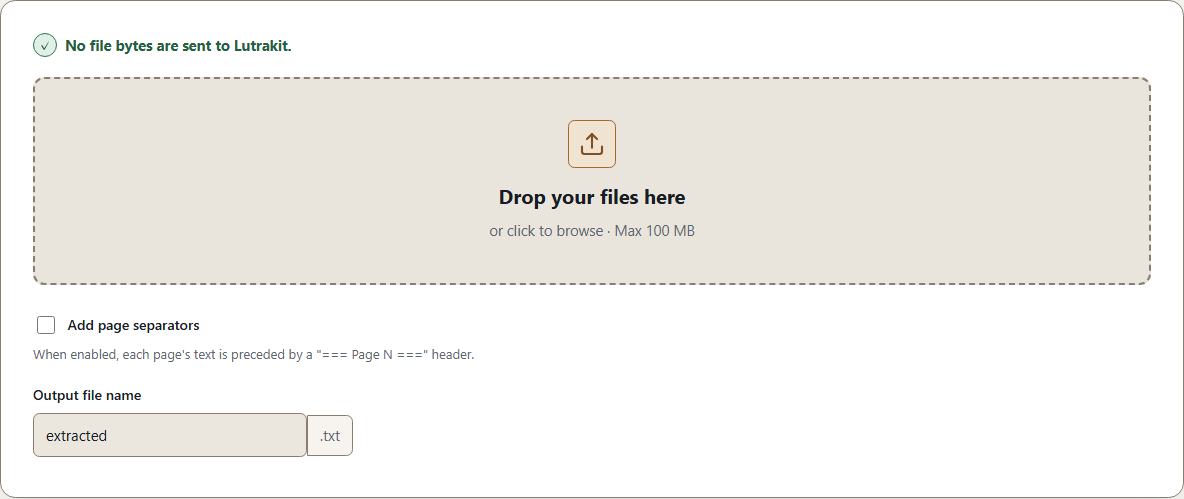
Use Lutrakit for embedded text
Use this workflow when your selection/search check succeeds:
- Open PDF to Text.
- Drop one PDF file. The current limit is 100 MB per file.
- Leave “separate pages” off for a continuous text file, or turn it on when page boundaries matter for review.
- Set an output name such as
contract-extracted. - Run the tool and download the
.txtresult.
The page separator option is useful for invoices, forms, minutes, and anything where a missing page would be a serious error. It inserts simple page headings so you can search for Page 7 in the text file and compare it with page 7 in the PDF.
Worked example
Use a redistributable, purpose-built sample PDF with three pages:
| Page | Sample content | Expected extraction |
|---|---|---|
| 1 | Exported digital text: “Invoice A-1024, total 148.60 EUR” | The same words and numbers appear in the .txt file. |
| 2 | Two-column meeting notes | Text appears, but the reading order must be checked column by column. |
| 3 | A scanned image of the sentence “Signed on 17 August 2026” | Empty or near-empty output unless OCR text was previously added. |
For a reproducible check, record the browser, operating system, Lutrakit revision, sample file hash, expected text, actual text, and every mismatch.
Why reading order can be wrong
PDF stores drawing instructions. A page can look like a normal paragraph while the text objects are stored as separate runs, positioned words, columns, headers, footers, or glyphs from a custom font. A text extractor follows the content it receives; it does not have the judgment of a person reading a layout.
Common symptoms:
- Headers and footers appear in the middle of body text.
- A two-column page alternates left-column and right-column lines.
- Ligatures or custom fonts produce wrong characters.
- Japanese or other scripts without spaces may be separated awkwardly if the PDF’s text runs are not word boundaries.
- OCRed scans include plausible but wrong characters, such as
Ofor0orlfor1.
For anything legal, academic, financial, or archival, treat the extracted file as a draft to verify, not as proof.
What to do with scans
If the PDF is image-only, text extraction is the wrong first tool. Improve the page image, then OCR it:
- Straighten tilted pages. Tesseract’s quality guide says skew hurts line segmentation and recommends rotating the page until text lines are horizontal (Tesseract ImproveQuality, accessed 2026-08-17).
- Prefer clean, high-resolution scans. The same Tesseract guide notes that 300 DPI or higher can help recognition quality.
- Crop away black borders and keep a reasonable white margin.
- Run OCR locally or in a trusted OCR tool, then use PDF to Text on the OCRed PDF if you need a plain
.txtcopy.
Lutrakit’s PDF Deskew can help with step 1 for PDFs and common scan images, but it does not add OCR text. A cleaner scan can improve a later OCR run; it does not become searchable by being straightened alone.
Verify the result
Use a small audit instead of reading the whole output blindly:
- Count pages: if the source has 12 pages and the text file only shows 11 page sections, stop.
- Search for one unique phrase or number per important page.
- Compare totals, dates, names, and IDs against the PDF, not against memory.
- For two-column pages, check the order of at least one full section.
- For OCRed scans, read every critical character visually in the PDF.
If the text file will feed another system, keep the PDF beside it. The .txt file is easier to search; the PDF remains the visual source of truth.
Limits and when not to use this method
Do not use PDF to Text as the only step when the PDF is a poor scan, a handwriting sample, a table-heavy report, a form where checkboxes matter, or a document where exact layout is evidence. Use a dedicated OCR/document-analysis workflow or a desktop PDF application when you need recognition confidence, table reconstruction, redaction, signatures, accessibility tags, or compliance records.
Lutrakit is helpful when the task is simple: turn already-embedded text into a local text file and check it yourself. That browser-only boundary is part of the product: the PDF bytes stay on your device, and the output is downloaded from the browser session.